Step By Step:
- Since Colabs are a free service operated by Google, you must be logged in to a Google
account in order to use ConSurf Colab. You can get a free Google account at
accounts.google.com.
-
Once you submit your job, don't close the browser tab/window, or you will likely lose
your job and need to start over.
-
Familiarize yourself with the protein structure of interest by exploring it in
FirstGlance in Jmol. In particular, note the single character ID
of the protein chain whose evolutionary conservation you wish to visualize.
(If more than one chain of different sequences,
you will need to run a separate ConSurf job for each.)
-
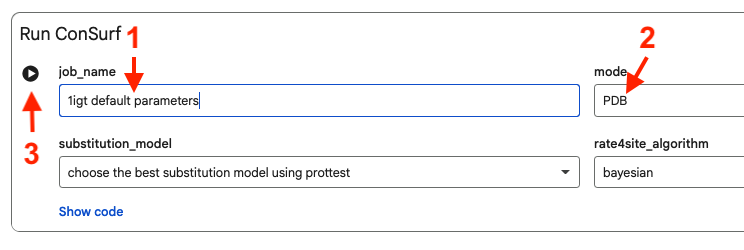
At
ConSurf Colab,
enter a title for your job
(1)
and be sure to set the mode to "PDB"
(2).
-
Run the Colab by clicking on the triangle
(3).
It may take 5-10 minutes for Colab to initialize the first time you run it.
Additional runs
started a short time after completion of the first run will not have this delay,
but runs started hours later will have the delay. After all the ConSurf Colab code is initialized,
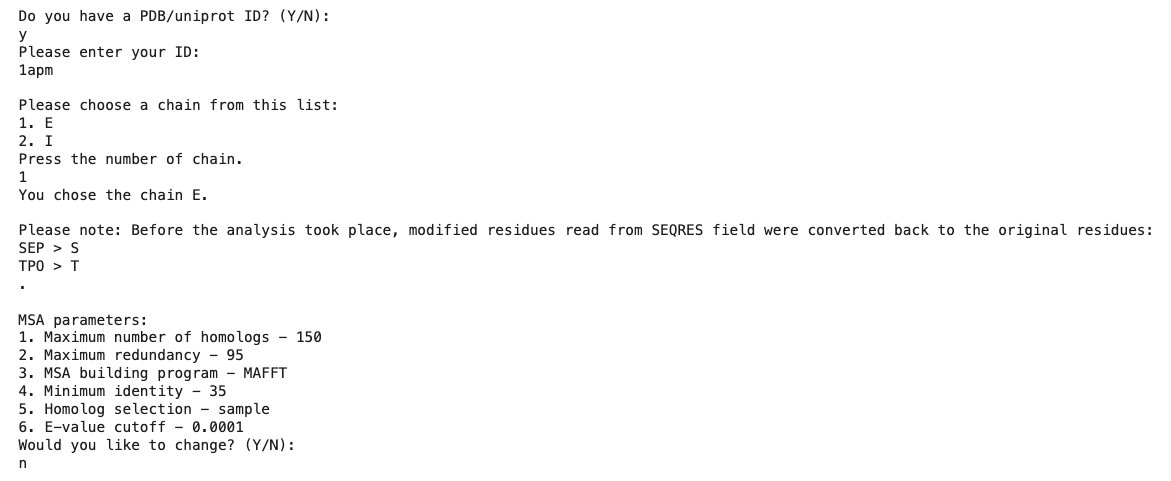
you complete the following easy form for PDB ID codes. (If you have an unpublished model,
such as an AlphaFold predicted structure, see step 6 below.)
-
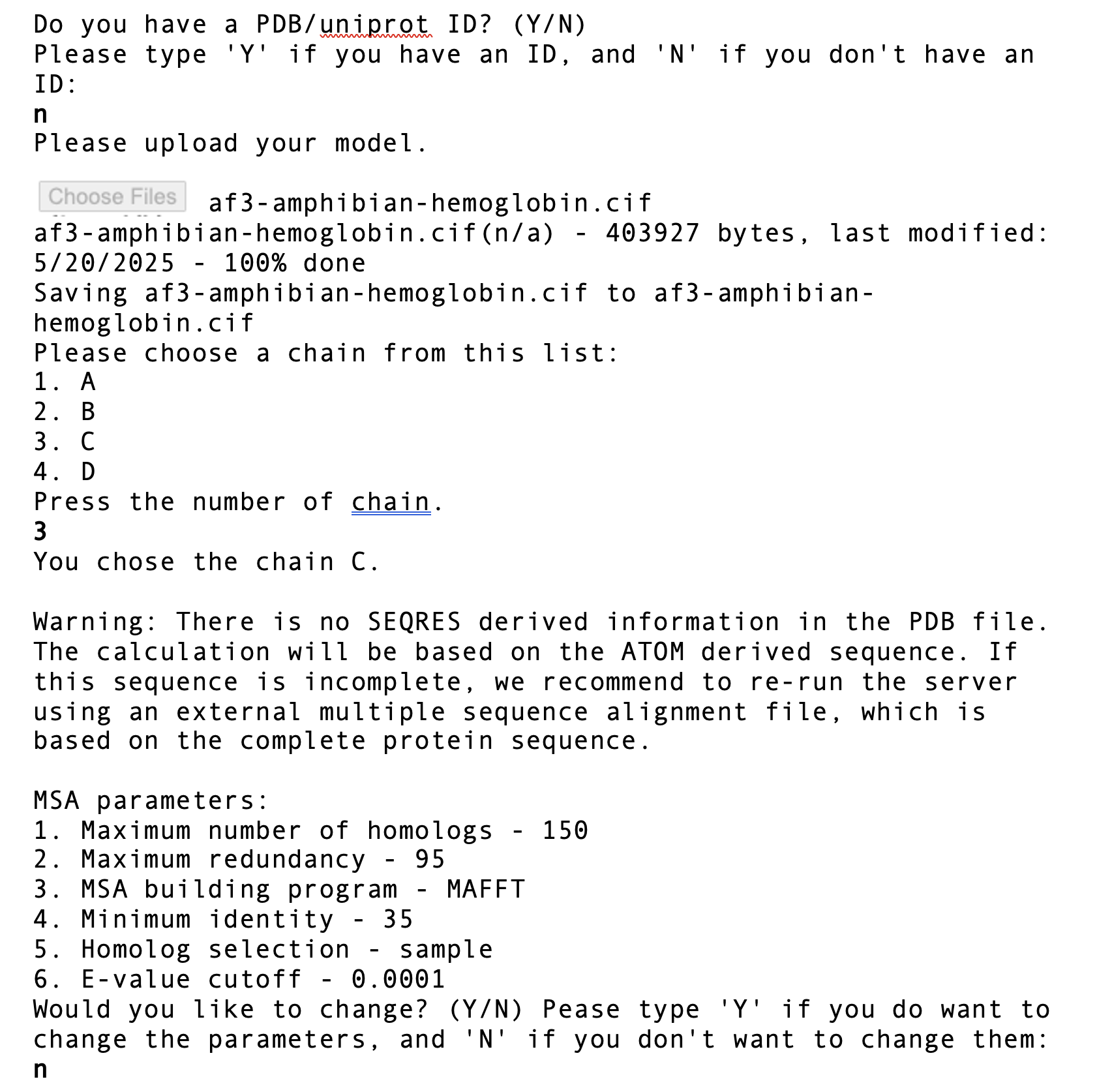
If you have an AlphaFold-predicted model or other unpublished model, you can upload it
to ConSurf Colab. You can upload either .pdb or .cif files. (Version 4.7 of FirstGlance can
process AlphaFold .cif files, but NOT .cif files from the
wwPDB.)
-
When the job is completed, colored ribbon cartoons of your molecule
will appear. You may need to scroll down to see them,
so try scrolling down periodically. Below the colored images,
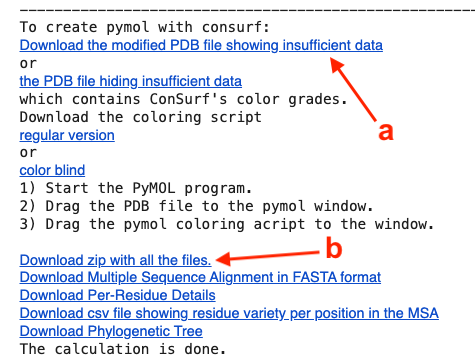
click the Download link
a
to download the PDB file for use in FirstGlance.
It is also wise to download the zip
b
that contains all files created by the job.
- Additional jobs:
-
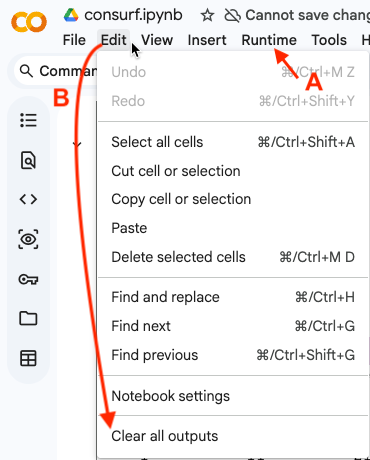
Open the Runtime menu at the top, and click on Restart Session:
See A in the snapshot at right.
-
Open the Edit menu at the top left, and click on
Clear all outputs: See
See B in the snapshot at right.
Now you can start a new job. If you do this shortly
after completion of your first job of the day, you will not need to wait for all the code
to load again. Sometimes, the slot for answering a question does not appear. If that
happens, reload the page and the slot will appear.
-
Insufficient Data:
ConSurf is uniquely powerful in indicating when the multiple protein sequence alignment does not
have sufficient information to calculate a meaningful conservation value for a given
amino acid. When the confidence interval for the conservation score is excessive, the
calculated conservation score for that residue is meaningless, and it is given conservation
grade 10: insufficient data.
This is obviously important to know. The only acceptable reason for hiding
which amino acids have insufficient information would be if they are few, and not
relevant to the point being made. "Hiding" means that the meaningless conservation grades
for those amino acids will be shown.
This can be accomplished by downloading a separate ConSurf result PDB or CIF file that omits
insufficient data grades.
When hidden, that fact must be disclosed.
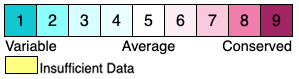
Conservation grades assigned by ConSurf are integers from 1 (highly variable)
to 9 (highly conserved), with 10 (or 0) indicating insufficient data.
The original ConSurf color scheme is below. Two alternative color schemes are also
offered by FirstGlance when viewing ConSurf Colab results.
-
Visualization of Conservation:
Drag your downloaded ConSurf-Colab PDB file and drop it onto the
Front Door to FirstGlance in Jmol.
The protein chain processed by ConSurf will be automatically colored with the above scheme.
You can color by evolutionary conservation all salt bridges, non-covalent contacts to any
ligand or moiety that you specify, amino acids covalently linked to sugar glycosides,
cysteines in disulfide bonds, amino acids forming crosslinks between chains, etc.
Instructions and demonstrations:
- Examples:
The following links display ConSurf Colab-processed PDB files in FirstGlance:
- SV40 capsid:
1sva-1-consurf-colab.pdb.
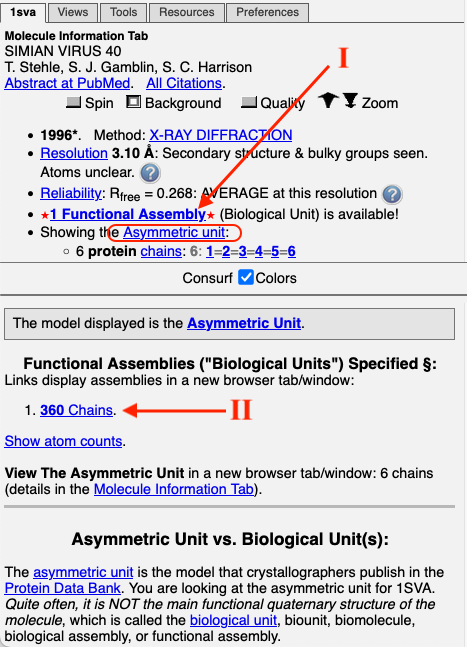
To get the full capsid from the initial view, click on
I
Functional Assembly, then
II
360 Chains. Then depress the Slab button (Views tab), and check both checkboxes
in the Slab dialog to see the half-capsid. Which is more conserved, the inside or outside
surfaces of the capsid?
- Antibody (Immunoglobulin G):
1igt-B-consurf-colab.pdb.
In the
Molecule Information Tab, under
Ligands+ & Non-Standard Residues, click on Find/List/See 2 covalent
glycoprotein bonds. How conserved are the glycosylated Asn residues?
- Bacteriophage T4 Cell Wall Puncturing Device:
Best first to look at the structure without ConSurf processing:
1k28. Try the Solid View.
Next: ConSurf-processed chain A:
1k28-A-consurf-colab.pdb.
Again, follow steps
I
and
II
to get the functional assembly (biological unit 1).
Feedback to